
Use your own AI with AutoCAD, Excel and Revit
Put the strongest AI models in the world to work inside AutoCAD, Excel and Revit: Claude by Anthropic and GPT by OpenAI. The CivilAxis Connector links the AI app you already use, Claude Desktop or Codex, to the software on your computer. You ask in plain words, it reads your file or makes the change, and anything it changes can be undone. The Connector is free while we launch.
What you need
- A Windows PC with AutoCAD, Excel or Revit (2021 to 2026).
- Claude Desktop or Codex. Claude works on the free plan as well as the paid ones, and Codex comes with ChatGPT plans. On a free plan, a long session can hit the usage limit.
- A free CivilAxis account.
It only works with the desktop apps, not with Claude or ChatGPT in a web browser.
1Install the Connector
Download it from the download page and run it. You don't need admin rights. Near the end it asks whether to connect your AI apps. Read the note and press OK.
If this computer isn't linked to your CivilAxis account yet, a sign-in page opens in your browser. Sign in there and you're done.
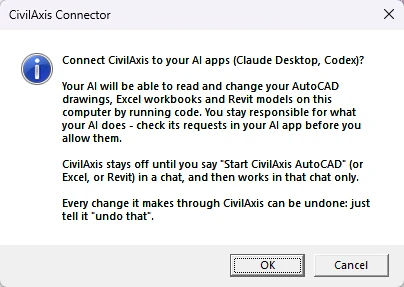
2Restart your AI app
Close Claude Desktop or Codex completely, then open it again. That's when it picks up CivilAxis.
3Start CivilAxis in a chat
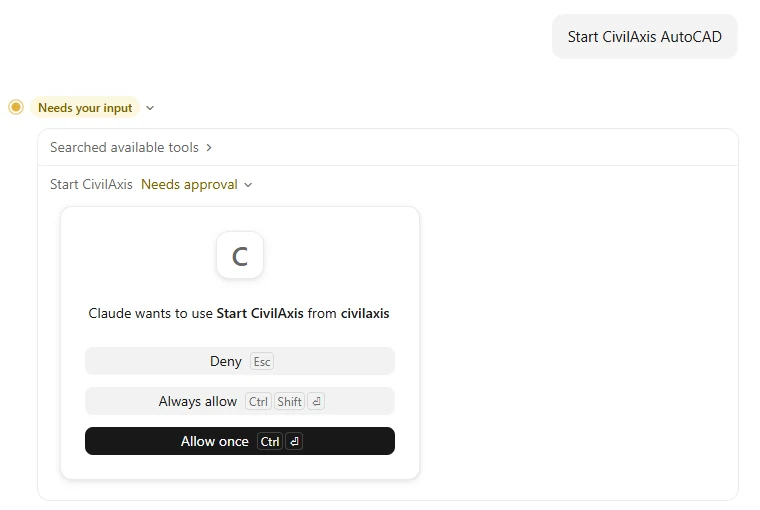
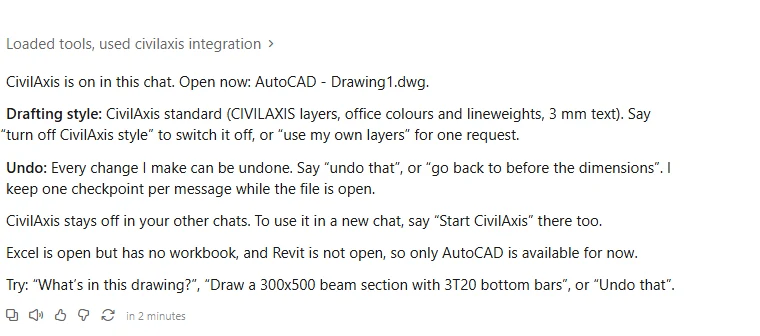
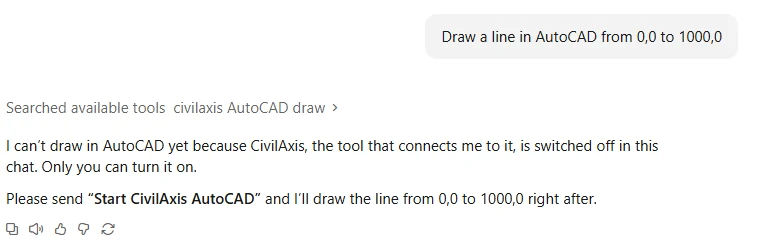
Open a drawing in AutoCAD. In Claude, start a new chat and say "Start CivilAxis AutoCAD" (or Excel, or Revit). CivilAxis stays off in every chat until you say this, so your other chats are never touched.
The first time it uses each CivilAxis tool, Claude asks for permission. Choose "Always allow", or it will ask again in every new chat.
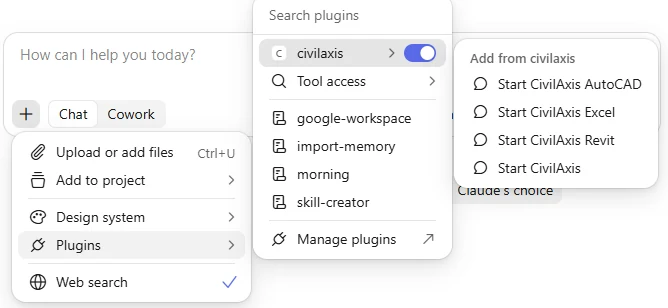
Prefer clicking? In Claude Desktop, press +, then Plugins, then civilaxis, and pick Start CivilAxis AutoCAD.
In any chat where you haven't said Start, CivilAxis does nothing, and Claude tells you how to turn it on.
4Ask your first question
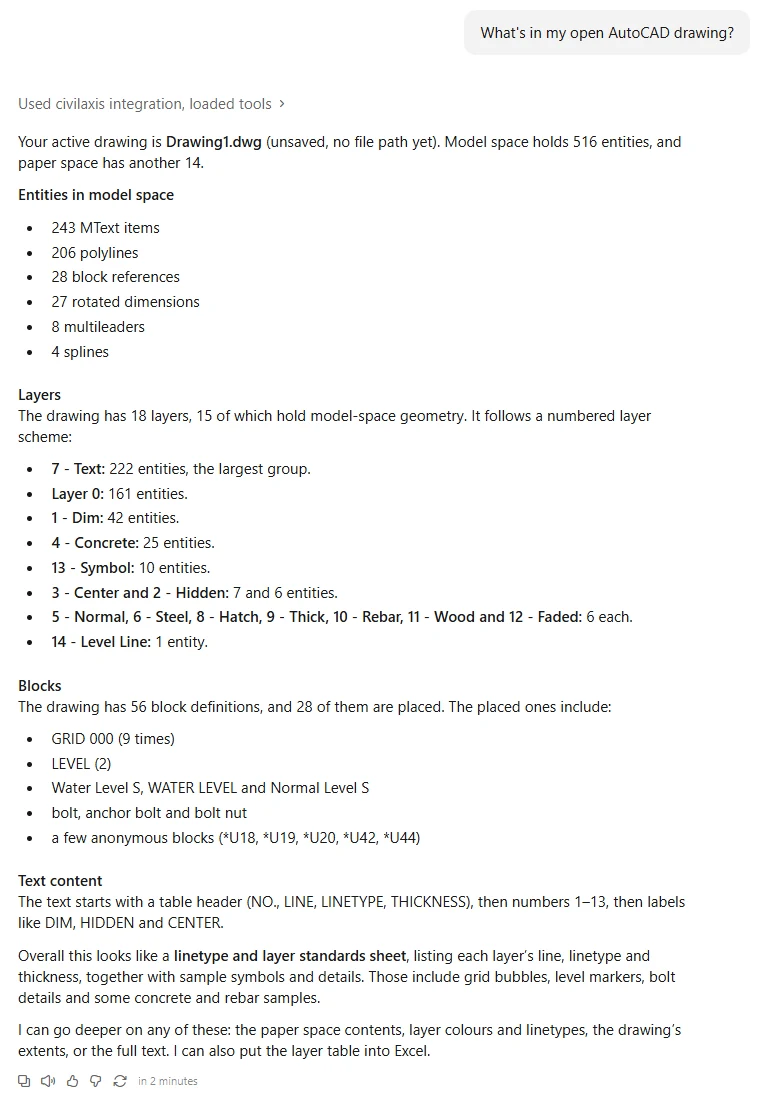
Now ask about your file, for example: "What's in my open AutoCAD drawing?"
5Let it draw
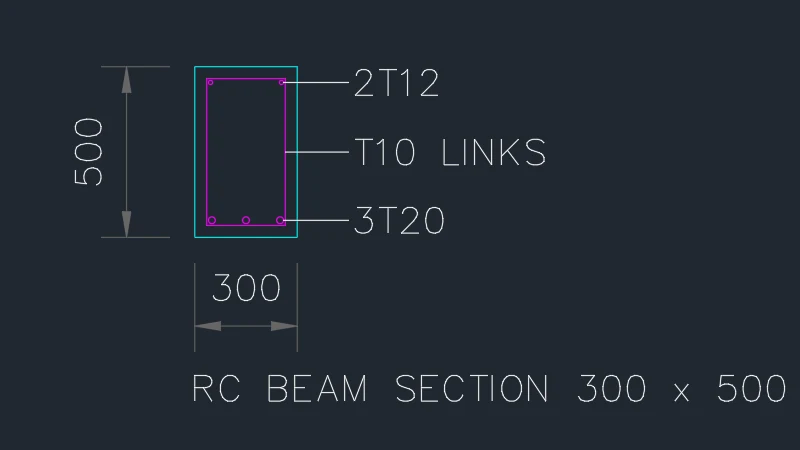
Ask for what you need, with real sizes. For example: "Draw a 300x500 beam section with 3T20 bottom bars, 30 mm cover and T10 links." If a size is missing, it should ask you rather than guess.
Everything it draws goes on its own CIVILAXIS layers, so it's easy to find, check or delete.
6Undo anything
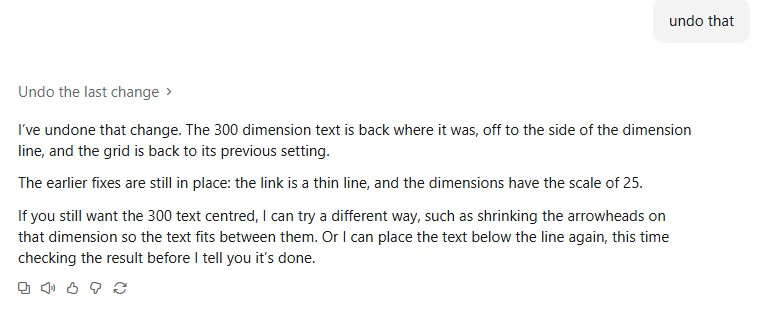
Just say "undo that". CivilAxis keeps a restore point for each message you send, so you can also go further back: "go back to before the dimensions".
Going back also removes anything you changed by hand since then, because AutoCAD keeps one undo history. Claude tells you before it does that.
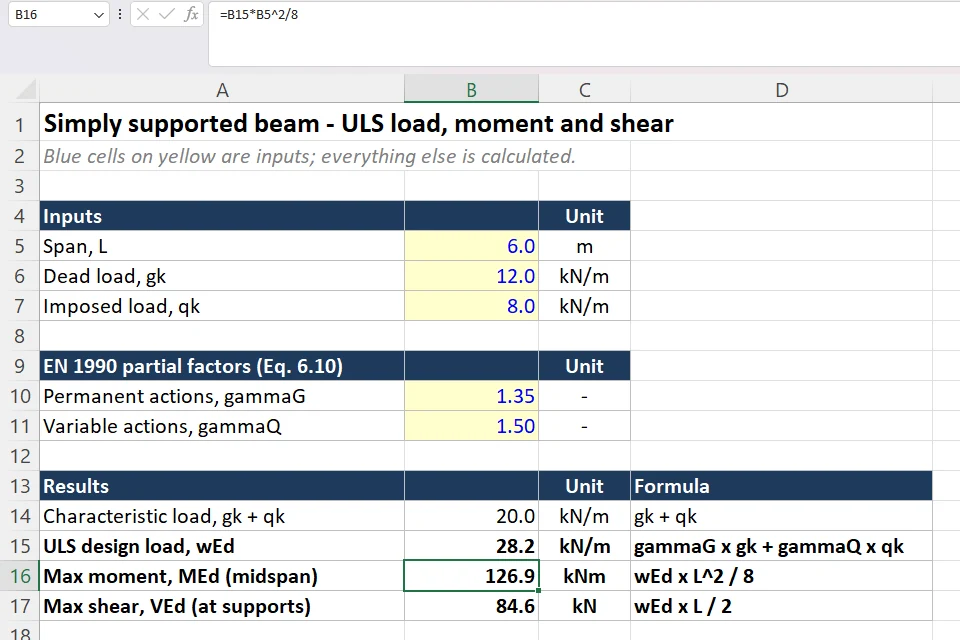
7Excel works the same way
Ask it to build a table, check one or fill in formulas. Excel's own Ctrl+Z can't undo changes made like this, so CivilAxis saves a copy of the workbook before each message instead. Saying "undo that" still works.
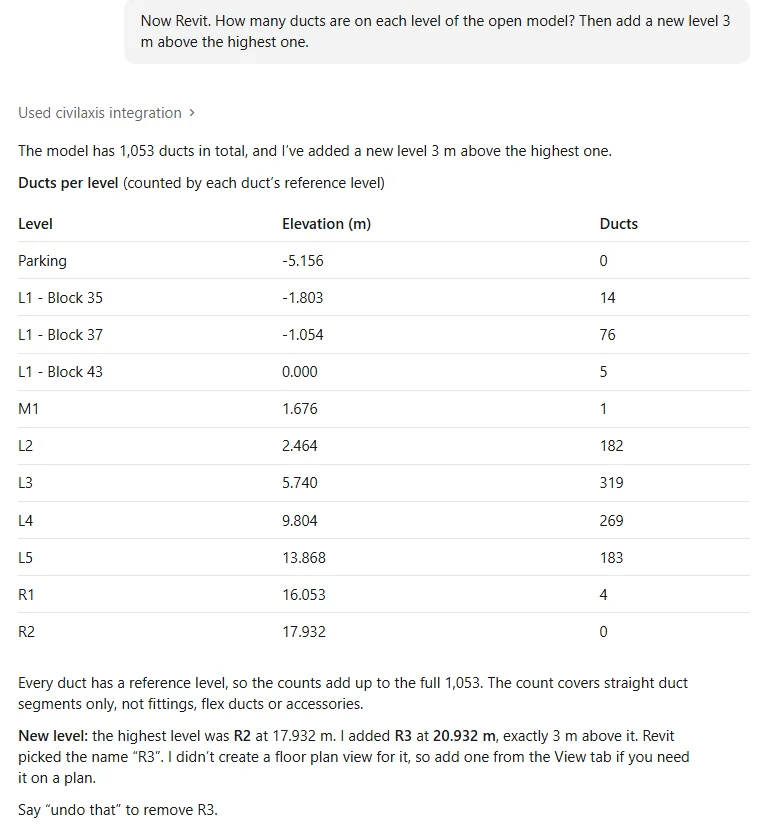
8And Revit
In Revit it can count, check and change elements in the open model.
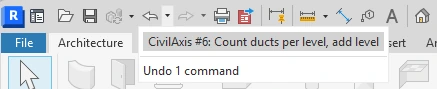
Revit doesn't let other programs undo, so each change shows up as one entry in Revit's own Undo list, named after what you asked. To undo it, click the small arrow next to Undo and pick that entry. Claude tells you which one.
Where the Connector lives
It is an ordinary Windows program, and nothing about it is hidden. It runs as the CivilAxis logo near the clock; if you don't see it, click the small ^ arrow there. The dot on the logo shows its state: green is signed in, amber is checking, red means a problem, and grey means this computer isn't linked to your account yet.
Right-click the logo for everything: sign this computer in or out, connect Claude or Codex again, open this guide, install an update, and choose whether it starts with Windows.
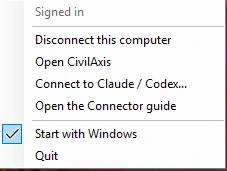
To reconnect, choose "Connect this computer..." to sign in again, or "Connect to Claude / Codex..." if your AI app no longer sees CivilAxis. Then restart the AI app.
Its files are in %LOCALAPPDATA%\CivilAxis\Connector.
It is listed in Windows Settings > Apps as "CivilAxis Connector", and Uninstall there removes it completely, including from Claude and Codex. To unlink the computer from your account too, go to Settings > Connected devices on civilaxis.com.
Your drafting style or ours
Drawings use the CivilAxis style by default: our own layers, standard office colours and lineweights, and 3 mm text. To follow your drawing's own layers and styles instead, say "turn off CivilAxis style". For one drawing only, say "use my own layers".
If something doesn't work
It says AutoCAD, Excel or Revit isn't open.
Open the program and a file first. Right after it starts, Excel is sometimes hidden from other programs for a moment. Click another window, then back on Excel, and ask again.
Claude can't find CivilAxis.
Restart Claude Desktop or Codex. After the Connector updates itself, restart it again. Claude may ask permission for its tools once more after an update, which is normal.
It says running code is paused.
We can pause it from our side if something goes wrong. Try again later.
It drew something wrong.
Say "undo that", then tell it what was wrong. It does better with real sizes than with descriptions.
Undo says it can't go back.
That happens if you pressed Ctrl+Z past that point yourself, or closed and reopened the file. Nothing is changed, and Ctrl+Z in AutoCAD still works.
Claude says CivilAxis isn't started.
Say "Start CivilAxis AutoCAD" (or Excel, or Revit) in that chat. Every new chat needs it, and so does a chat after Claude restarts.
Your files, your call
Your files stay on your computer. The Connector sends CivilAxis usage counts only, never your drawings or data. Your AI app does see what it reads from your files, under that app's own privacy terms.
Your AI can change your files, so treat its work like a junior engineer's: check it before you rely on it.